
Microsoft 365 powers daily work for many SMBs, from email and file sharing to collaboration and productivity. What often gets missed is how much security value is already built into the platform. The gap usually is not the platform itself. It is that many businesses never fully configure the protections already available to them.
More protection is already in the platform
Most businesses know Microsoft 365 for Outlook, Teams, Word, Excel, and SharePoint. What gets less attention is the security side of the platform. Features like multifactor authentication, Conditional Access, Safe Links, Safe Attachments, device management, and data protection help businesses reduce risk without adding disconnected tools. Microsoft has also introduced Baseline Security Mode, which brings together more than 20 recommended security controls that were previously spread across multiple admin portals and PowerShell workflows. It also helps separate lower-impact policies that can be applied right away from additional controls that generate impact reports first, making it easier to close gaps without creating unnecessary disruption.
For growing organizations, that matters. Microsoft 365 gives teams a way to support security, collaboration, and device control inside one familiar environment.
The difference between having the tools and using them well
Using Microsoft 365 does not automatically mean your environment is secure. Default settings, broad admin access, weak sharing controls, and inconsistent device policies can still leave gaps. That is especially true for businesses handling client records, financial data, donor information, or sensitive internal files.
It is also worth reviewing older risks that tend to be ignored, like anonymous sharing links and expired guest access. As tools like Copilot and AI-driven search make files easier to surface, old “Anyone with the link” shares and stale guest accounts can create more exposure than many businesses realize. In many environments, those permissions have been sitting in place for years without being reviewed. Microsoft outlines this in its guidance on best practices for unauthenticated sharing.
For SMBs without a large internal IT team, the opportunity is simple: get more value from the platform by making sure it is configured to match how the business actually works.
The settings that can make the biggest impact
A few settings often deliver some of the biggest security gains.
Multifactor authentication and Conditional Access help protect user identities and reduce login risk. Baseline Security Mode can also help businesses apply a broader set of recommended protections in a more centralized way.
Safe Links and Safe Attachments strengthen email security, which matters for organizations that rely heavily on Outlook. It is also worth making sure those protections extend into Teams, where Microsoft Defender can now detect malicious link clicks in messages, chats, and channels that might otherwise bypass protection if policies are focused only on Exchange.
SharePoint and OneDrive sharing controls help teams collaborate without giving up visibility or control. Reviewing old anonymous links and expired guest access is just as important, since outdated permissions can leave sensitive files exposed long after the original sharing need has passed.
Admin role reviews and endpoint management through Intune help reduce unnecessary access and standardize security across laptops and mobile devices.
Defender anti-phishing settings also deserve a closer look. Microsoft’s guidance on recommended settings for EOP and Microsoft Defender for Office 365 notes that while spoof protection is included by default, impersonation protection and phishing threshold settings may still need to be configured manually. That matters for attacks targeting executives, finance teams, and property managers with fake wire or payment requests.
Taken together, these settings help Microsoft 365 do more than support productivity. They help turn it into a stronger business security platform.
A smarter way to tighten your Microsoft 365 environment
Start with the basics. Confirm MFA is enforced, review sign-in policies, and check whether older authentication methods should be blocked.
Then move into email protection, sharing settings, and admin permissions.
After that, review device management and data protection policies. The goal is not to make the environment more complicated. It is to make sure the platform is set up intentionally, with the right protections supporting the way your team works.
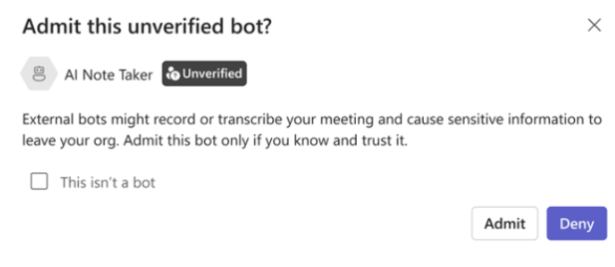
It is also worth keeping an eye on what is coming next in Teams. Microsoft is rolling out added visibility into third-party AI meeting assistant bots in the lobby, helping organizers identify outside tools that may record or transcribe meetings before they are admitted. That will matter more as employees increasingly bring tools like Otter, Fireflies, and other AI assistants into business meetings without IT oversight.
The value is already there
Microsoft 365 gives SMBs a strong foundation for both productivity and protection. The real opportunity is making full use of what is already included. When the right settings are in place, businesses can reduce risk, improve consistency, and get more return from a platform they already rely on every day.
Make Microsoft 365 work harder for your business
If your organization is already using Microsoft 365, the next step may not be adding more tools. It may be getting more out of the ones you already have. A focused review can help uncover overlooked settings, close preventable gaps, and turn Microsoft 365 into a stronger part of your security strategy.